 Memmy
Computer History
Turn activity in apps and websites into summaries, so you can resume work, find a file, or keep a flow you just finished as a skill.
Computer History turns your activity in apps and websites into summaries. Later tasks can pick up where you left off, find a file you just opened, or turn a flow you just finished into a skill.
It records only after you turn it on. You choose which apps and websites contribute, and you can review, pause, or delete the history at any time. It is available on macOS and Windows 11.
After the first-time setup, opening Memory on a supported device may show a one-time Computer History introduction. Set up History enters the setup below. Close, or a click outside the introduction, dismisses it for good. You can still turn it on later from Memory → Computer History.
Start recording
- Open Memory → Computer History. The first time, choose Set up History. If records already exist, turn on Enable computer activity recording on the right.
- Read the explanation, choose Enable recording, choose which apps and websites to include, then choose Continue and enable.
- On macOS, if Accessibility is not enabled, choose Enable and finish the system permission. If you see Quit & Reopen, follow it so the permission takes effect.
- Return to the page and confirm it says Recording.
The steps below use the macOS window. Switch steps, or enlarge a picture, to see the full window.
What it helps with
Pick up where you left off
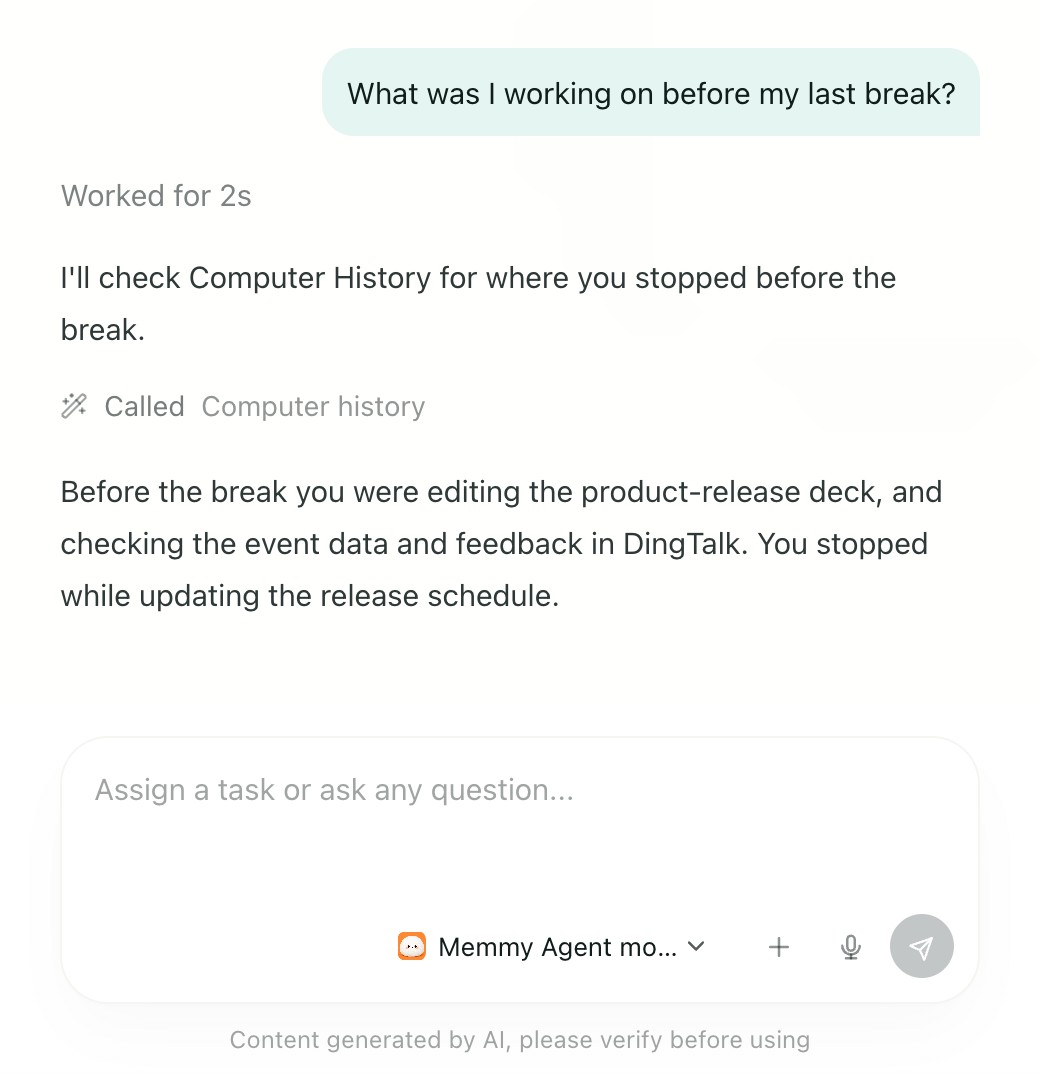
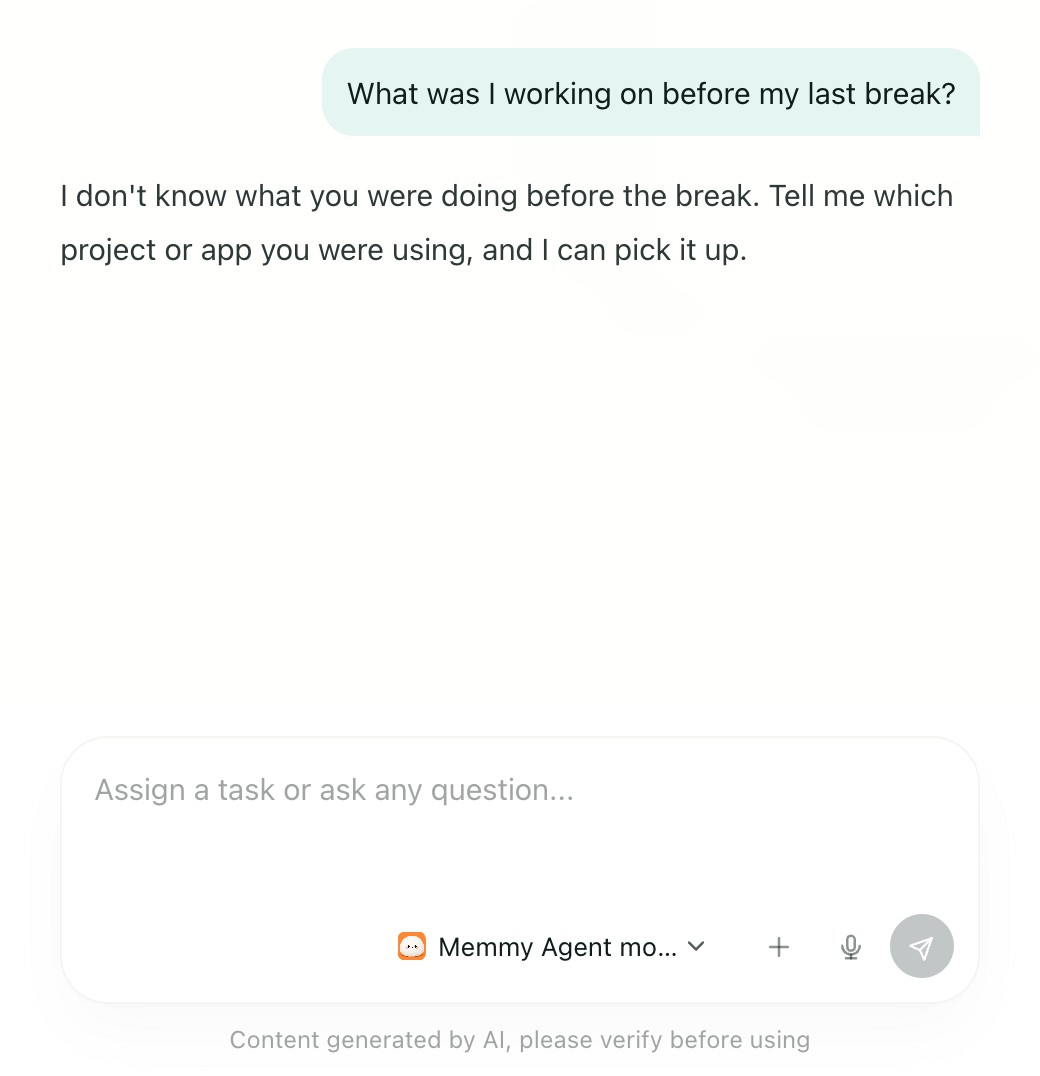
After a break, ask what you were doing. You do not have to reconstruct every open app and file.
Find a file you just opened
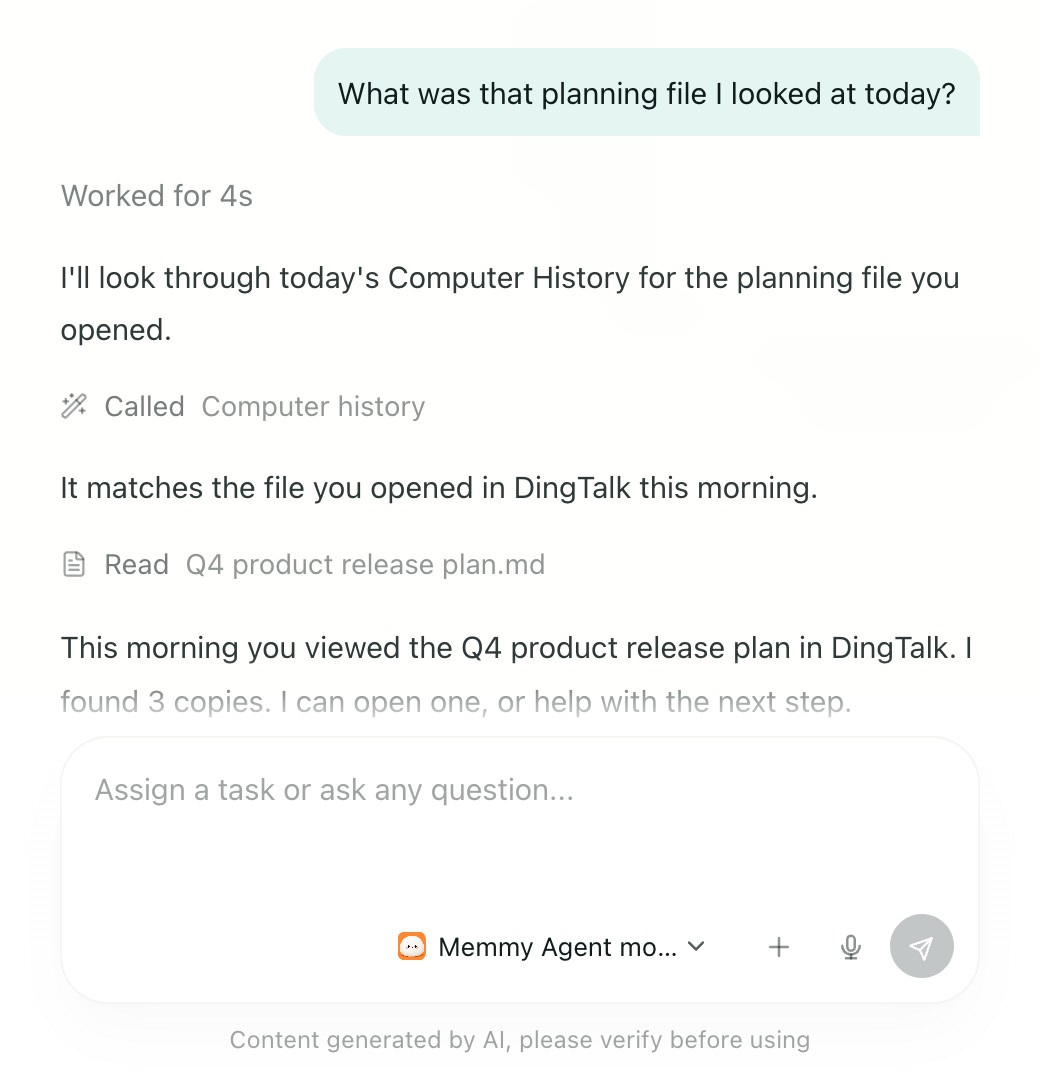
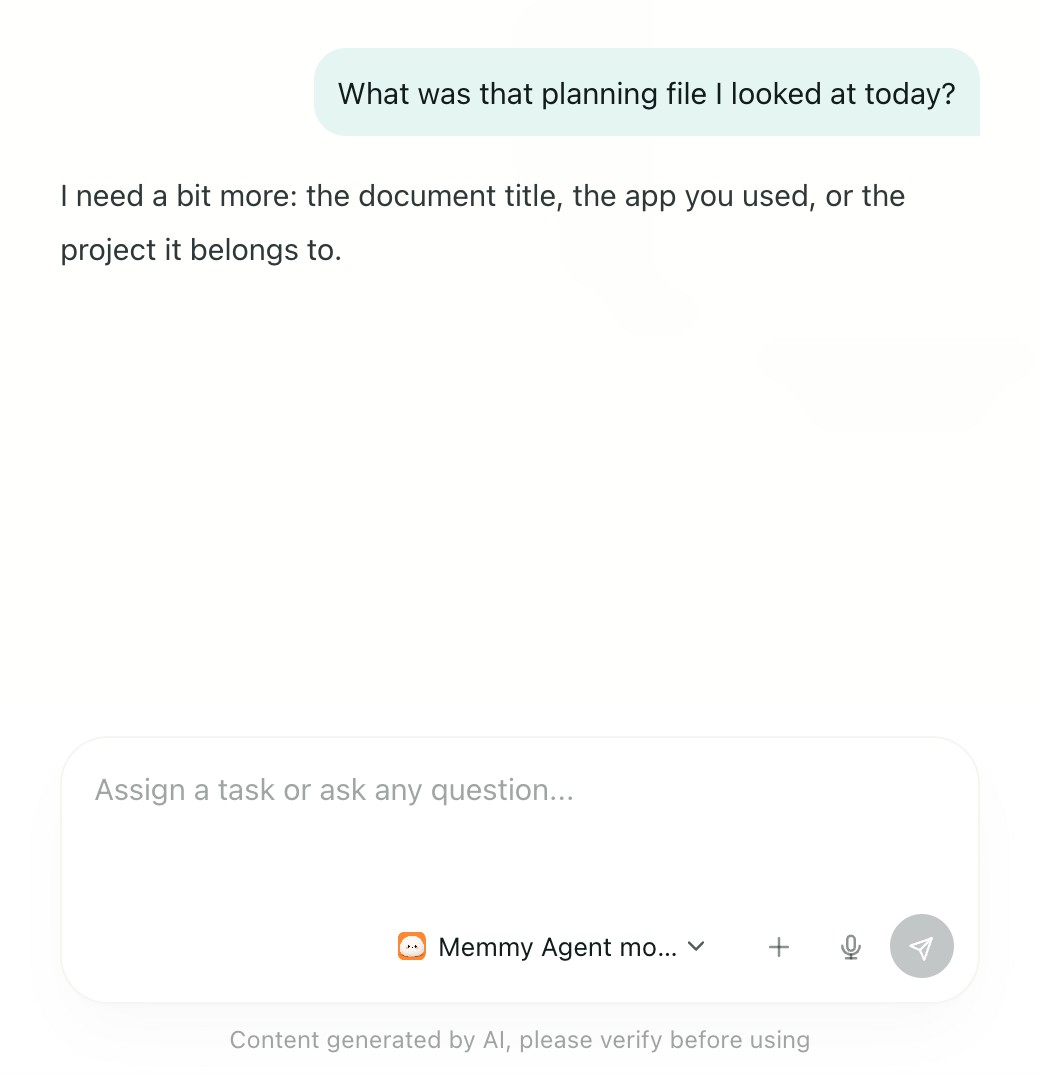
Refer to a file the way you remember it. The record is used to identify the source.
Keep a finished flow as a skill
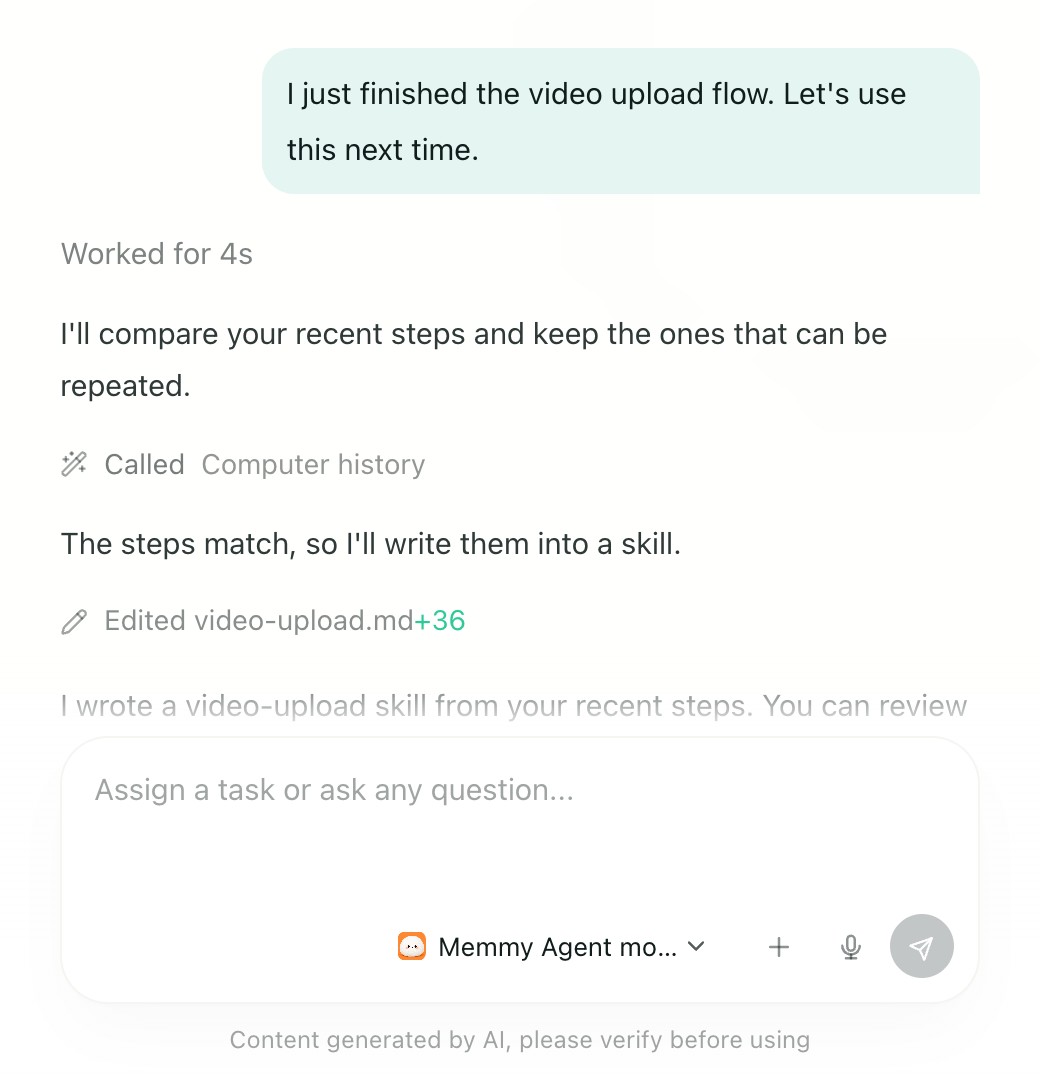
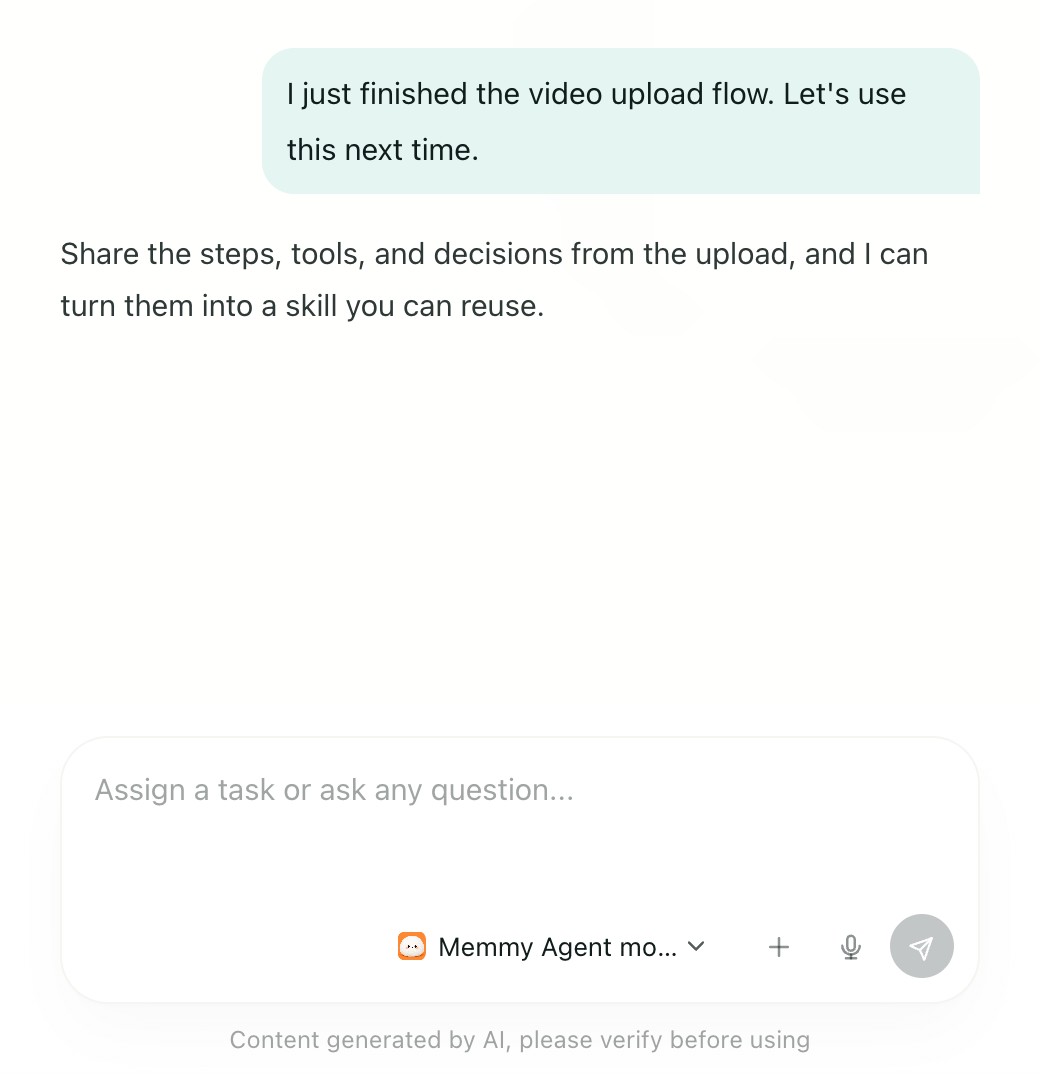
After a task, ask it to compare the recent steps and write a skill you can use next time.
Find the work you just did
After you have used the computer for a while, scroll to the history. Read the summaries by date. Move the pointer over an item and choose the document icon beside the title to open the full record.
You can say:
- What was I working on before my last break?
- What was that planning file I looked at today?
- I just finished the video upload flow. Let's use this next time.
Once the right material is found, you can ask for a to-do list or a draft of the next step. If a summary is incomplete, add the original file or URL.
Change what is recorded
On the Permissions row, choose Choose or the button that shows how many items are selected, such as 3 selected, and adjust the app and website rules. Include only these apps or Include only these websites records only the list. Exclude these apps or Exclude these websites skips the list. New activity follows the saved rules.
Pictures, sound, and content that cannot be read are not recorded in full. Native recording can include a foreground browser’s private window. Add websites you want to skip to the exclude list.
Web history and WeChat chats
Enhanced webpage history uses the browser extension to add web controls and action changes. It shares that extension with computer use, and it follows the Computer History recording settings.
Allow reading WeChat chats is a separate switch. Allowing ordinary Computer History does not allow Memmy to read WeChat chat data directly. Read that option’s full explanation first.
Pause or delete
Turning the recording switch off stops collection. Existing records stay.
- Delete one item: hover the item, choose the trash icon beside the title, and confirm. Stop a segment that is still being recorded before you delete it.
- Clear today or everything: choose Clear history, pick Clear today or Clear everything, and confirm.
Clearing history also deletes the matching memories and related skills. It cannot be undone. If it says deletion is still in progress, wait. A failure is retried automatically.
No new summary?
Check that the status is Recording, that the system permission is in effect, and that the app is inside the recording scope. If there was activity but the summary is still being organized, check again later. If the model is unavailable or the quota is used up, open Settings → Model configuration.
Where is it stored?
Raw records stay on this computer. When a summary is created, the needed content is sent to the model you configured. An online model receives that content. A platform model is processed by the Memmy service.